

The Logbook can import ADIF files from other applications.
It is also possible to export selected logs to ADIF files.
Unlike many other programs, the export process takes into account the requirements of programs such as POTA, SOTA, and others.
📥 Import data from ADIF files
After selecting the log import option, a dialog window will open:
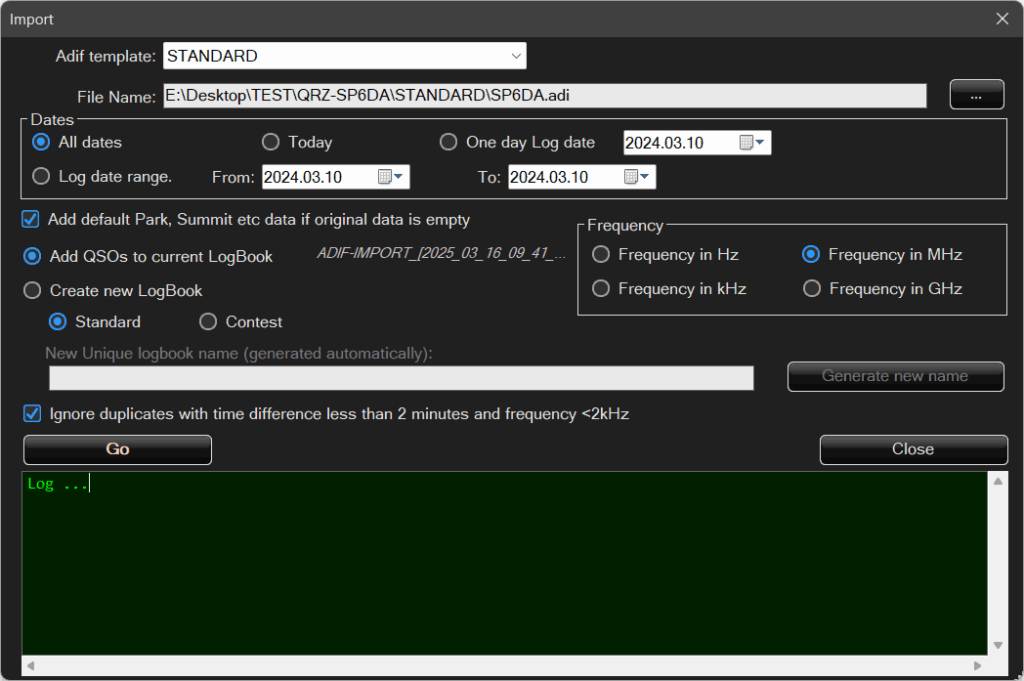
First, you need to select the template type.
Data from different programs store additional values in different ADIF fields, and sometimes these fields overlap.
By selecting a template, you define how park, summit, and similar data should be interpreted.
Next, use the “…” button to select the file to import and specify the date range you are interested in.
For example, JTDX stores all QSOs, including those from weeks or months ago, while you may only be interested in QSOs from today’s activation.
In this case, select the appropriate date range option.
Frequency
Frequencies are usually stored in megahertz (MHz), but if for some reason a different unit is used, it can be specified here.
Add default data (Park, Summit, etc.)
If park, summit, or similar data has been entered in the main log window and is missing from the imported log, it will be added to the imported QSOs.
For example, logs from JTDX do not contain park information.
By enabling this option, the program will automatically fill in the required data.
If the ADIF file contains errors or missing fields, all data that can be interpreted will still be imported.
After the import, the data should be reviewed.
📤 Export data to ADIF files
The export window looks as follows:
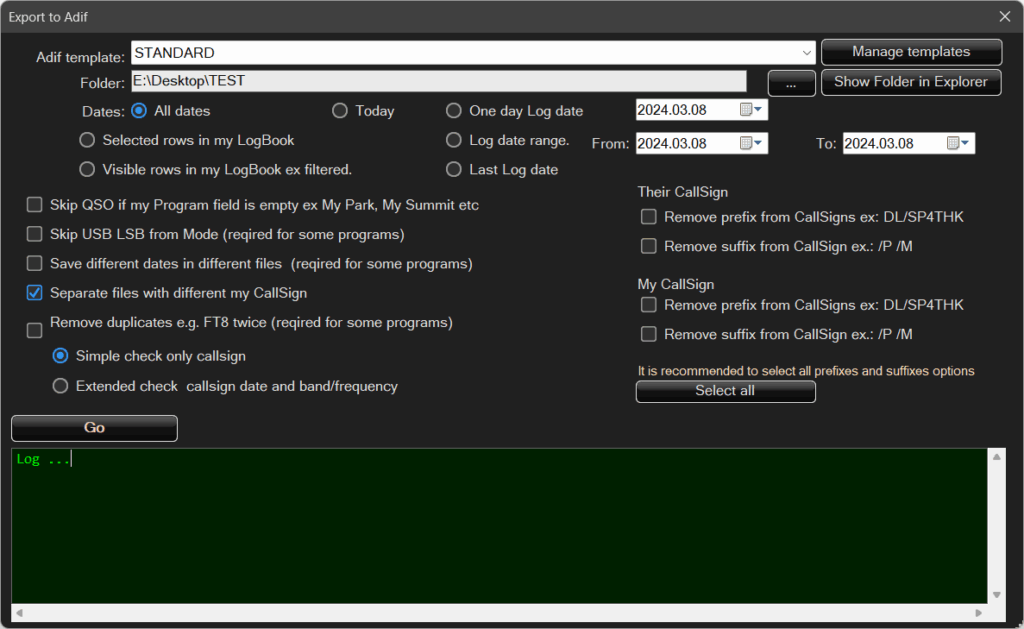
Here, you also need to select a template.
These are different templates than those used only to define the program name.
You can manage them by clicking Manage templates.
The remaining options are self-explanatory based on their names.
The Remove duplicates option checks whether the same callsign already exists in the list.
If it does, the program then verifies whether the park/summit references and other related fields match before deciding whether to skip the entry.
Additionally, frequency, band, and date are checked.
Only if all of these values match is the record considered a duplicate and excluded from export.
Duplicates are not removed from the logbook — they are only skipped during export.
If you worked with multiple programs simultaneously, the export should be performed separately for each program, selecting the appropriate template each time.
Park-to-park and multi-park operation
If QSOs were made from multiple parks at the same time, or if you are contacting a station operating from multiple parks, these references should be entered in the appropriate fields separated by commas.
The program will then automatically split the data into multiple files and/or duplicate QSOs as required.
The general rule is that one QSO equals one logbook record, which may contain data for multiple parks and programs.
By selecting the export method, you decide whether the result will be:
- a single ADIF file with one record, or
- data that is processed, split, and duplicated as needed.
For example, if you are operating from two parks and enter during the QSO:PL-1234, PL-4567
then during export, two ADIF files will be created — one for PL-1234 and one for PL-4567 — each containing the relevant QSOs.
If you contact a station operating from two parks, for example:PL-4321, PL-2345,
then this QSO will be saved as two separate QSOs — one for PL-4321 and one for PL-2345 — within the same ADIF file.
If you are operating from multiple parks and you contact a station that is also operating from multiple parks, multiple files will be created — one file for each of your parks.
In each of these files, the multi-park contact will be duplicated as many times as the number of parks used by your correspondent.
Example QSO:
3 parks to 4 parks
This will result in 3 files, each containing 4 QSOs, giving a total of 12 QSOs across all generated logs.
After clicking Start, the files will be generated and saved to the selected folder.
Inside this folder, a subdirectory with the template name will be created, and the files will be placed there.
File names are generated automatically using the following format: yourCallsign@parkName-QSOdate.adi Example: SP4THK@PL-0313-20240216.adi
If the directory already exists, all existing ADIF files will be renamed instead of overwritten.
For example, ifSP4THK@PL-0313-20240216.adi already exists,
it will be renamed toSP4THK@PL-0313-20240216.adi_old_1.
If that file also exists, the number is incremented (_old_2, _old_3, etc.) until a free name is found.
Thanks to this mechanism, the program never deletes or overwrites existing files, and all previous data can always be recovered.
🧩 Template Management
After clicking this button, the template editor window will appear.
These templates apply only to export — they are not required for import.
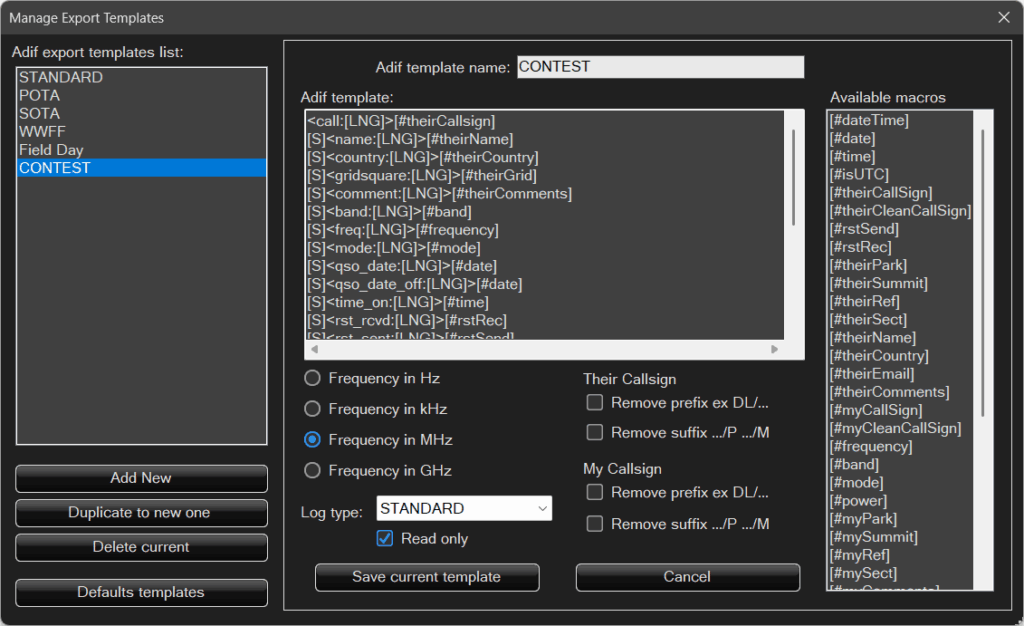
It is worth reviewing the built-in templates before creating your own.
It is also highly recommended to become familiar with how ADIF files are structured.
In short, ADIF files are similar to XML files.
They consist of field names starting with the < character, for example <call, followed by a colon and the length of the value, and then the > character, e.g. <call:6>SP4THK.
This is followed by a space or a newline and the next record element, such as date, time, signal report, etc.
At the end of the entire record, the <eor> tag indicates the end of record.
For easier viewing, using the default templates, the program saves one QSO per line, for example:
<call:6>SP4THK <name:15>Tomasz Fronczek <country:6>Poland ... <eor>In a template, each macro must be placed on a separate line.
If a given macro does not exist in the record (for example [#theirRef] is empty), the entire line will be omitted.
Thanks to this, a useful trick can be applied, for example in the WWFF program:
[S]<sig:4>WWFF[S]<sig_info:[LNG]>[#theirRef]If [#theirRef] is empty, the WWFF entry will not be written either.
[S] represents a space and is required because the program removes leading and trailing whitespace before analysis.
[LNG] specifies the length of the value, for example SP4THK has a length of 6.
[ENT] represents Enter — a new line.