
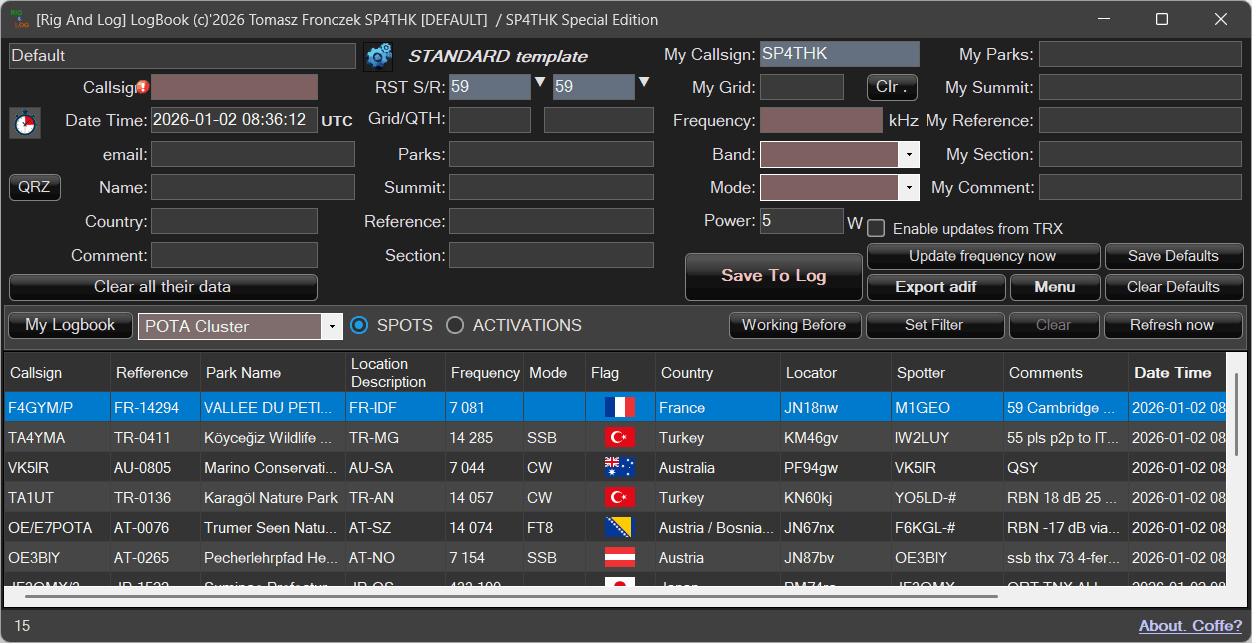
The second main module of the program, and in many cases the first one, is the LogBook, which allows you to record communications. It may or may not work in conjunction with a transceiver.
You can also set it as the main program window if you want to use only logs without connecting to the radio.
The idea behind the creation of the log was field activations in various programs. For now, I have experience with the POTA program, so other programs may still require testing and corrections.
Log does not need databases, the files are saved in text form in the CSV format and can be easily opened in Excel, for example.
This is a simple and quick way to save data that does not require filtering or various types of queries. It is good practice to save each activation in a separate log created for a specific activation. This protects against failure and speeds up the program’s operation.
We run the logbook from Menu->Log Book with the POTA/SOTA cluster….
Other startup and configuration methods are described in the Installation section.
You can easily move between the necessary fields, i.e. sign, reports, frequency, etc., using the Tab or Enter key.
Required fields are highlighted in “blue”
The program marks required fields in “red” if they are not completed.
When working with a cluster, clicking on a cluster element will fill the fields with data from the cluster. We start a conversation (if we succeed). We press enter several times to accept, correct the RST reports if necessary, and the log is saved. You can also immediately click on Save to logbook. If the date is empty, it will be filled in automatically.
When not saving, click on another record in the cluster or the Clr button. – data cleaner. There are two Clr buttons. At the sign, he cleans as much as he can. For a band, it only clears the frequency, band and mode.
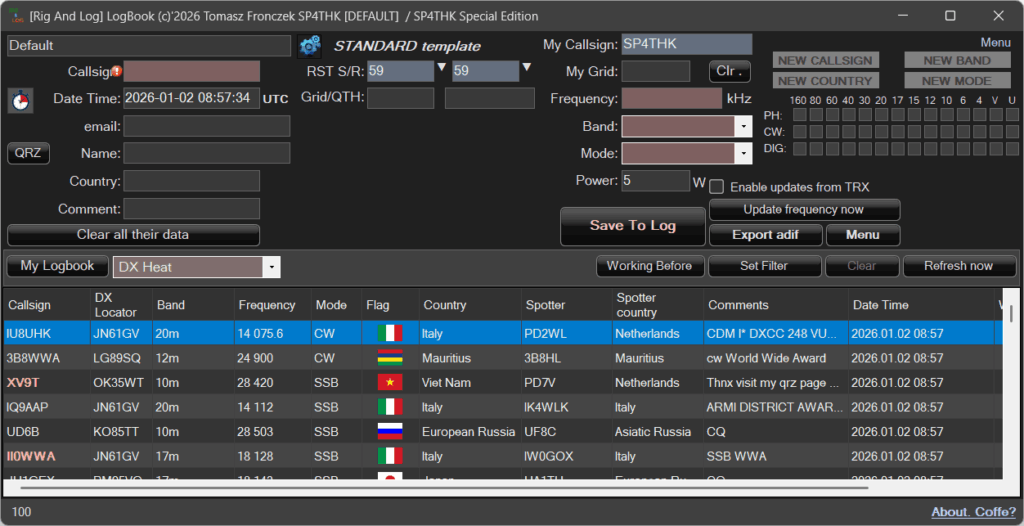
🗺️LogBook main window:
Next to the date and time, one or two icons are displayed.
The date and time are updated automatically, but this behavior can be paused.
Updating the time is stopped by entering edit mode (clicking on the time) or by clicking the icon.
Icon meanings:

Time updating is disabled

Time updating is enabled

Inserts the current time (does not start automatic updating)
At first, the multitude of options may be overwhelming, but after a while everything will become clear.
I suggest you set the configuration first. To do this, click on the Settings icon:

A window with options will appear:
⚙️ Logbook Configuration
Most options are intuitive, so the description focuses on the more advanced or less obvious settings.
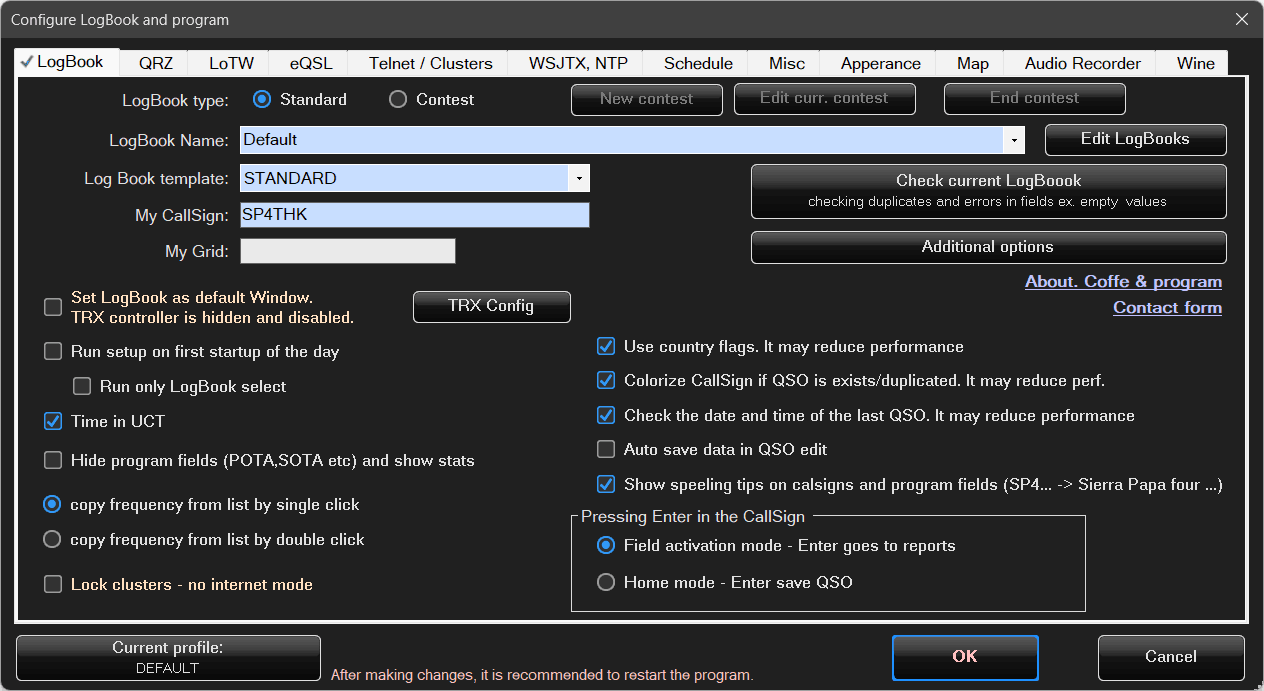
Logbook configuration is divided into the following sections:
- Logbook – logbook name and template, user data, behavior, appearance
- QRZ – login credentials for QRZ and how the program interacts with QRZ.
- LoTW – configuration for cooperation with the TQSL application used by LoTW.
- eQSL – configuration for sending QSL cards via e-mail.
- Clusters / Telnet – as the name suggests, configuration of DX cluster connections.
- WSJTX / NTP – support for digital mode applications (e.g. FT8) and time synchronization.
- Scheduler – settings for automatic tasks, e.g. sending logs to QRZ or LoTW.
- Misc – other program options: language, backups, and additional settings.
- Appearance – program appearance: visual styles, color scheme, and font sizes.
- Map – options for map display and QSO visualizations.
- Audio Recorder – audio configuration and recording options.
- Wine – visible only on Linux, used to configure the program in the Wine environment.
The main Logbook Configuration window contains the primary appearance and functionality options.
📘 Logbook Name – you can select an existing logbook from the list or enter a new name.
Logbooks are stored in the program’s LOGBOOKS folder. Each logbook is kept in a separate folder named after the logbook.
For this reason, special characters such as ? * & % * \ / are not allowed in the name.
Inside the logbook folder, there is a logbook.csv file along with its backups (the last 11 changes, excluding the addition of a new QSO).
Logbook Template – the following templates are available: Standard, POTA, SOTA, WWFF, Field Day.
The Logbook works essentially the same in all cases; the difference lies in the required fields.
For example, for POTA you must enter your park reference, for SOTA the summit reference, etc.
Default Window – as mentioned during installation, the program can operate either as a Logbook-only application or with transceiver control enabled.
- If this option is enabled, the program behaves as a classic logging application.
- If it is disabled, the default main window is the radio control window, which can cooperate with the Logbook.
In practice, this results in three different views.
When the option is enabled:
- Only the Logbook window is visible.
When the option is disabled:
2. The Radio Control window
3. The Radio Control window together with the Logbook window
Why this somewhat unusual approach?
- Radio control is not always required.
- Enabling radio control initializes additional libraries, which may temporarily pause the application.
It is more efficient to perform this initialization once at startup rather than every time the TRX controller window is opened.
Configuration at first startup each day
This option is especially useful for portable and field activations.
When starting a laptop in the field, the program immediately enters the configuration mode, allowing you to quickly create a new Logbook for a specific activation.
In this scenario, the option “Start with Logbook selection only” is particularly useful.
Hide POTA / SOTA fields and show statistics
To allow entering additional data required by various award programs — and because activators often participate in multiple programs at the same time — the application provides a number of dedicated input fields.
However, not every user participates in POTA or similar programs and may never use these fields.
They can be hidden, and the freed space will instead display simple log statistics.
Disable clusters – offline mode
When this option is enabled, the program does not attempt to connect to the internet.
During field activations with poor network coverage, downloading data from services such as QRZ or map providers may be very slow.
With a single click, all online connections can be disabled, allowing you to perform activations without interruptions.
The next few tabs are intentionally skipped here and will be described separately.
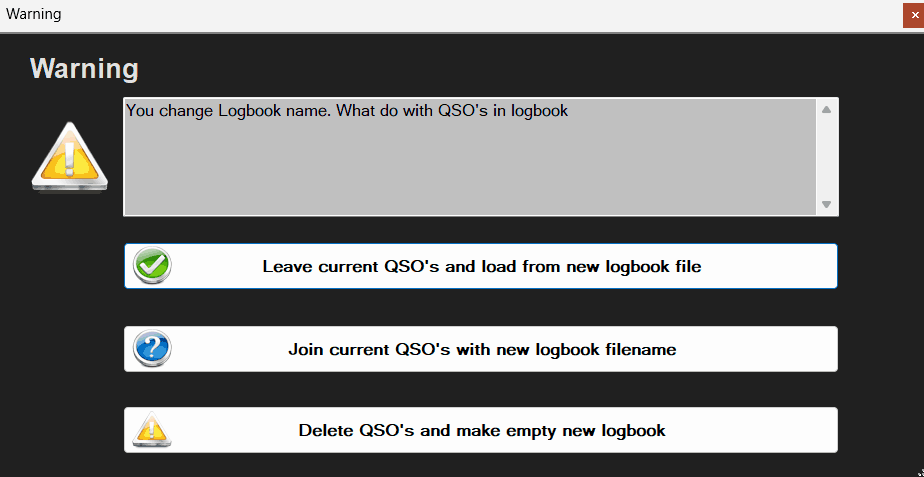
Changing the logbook
There may be situations where one logbook is already open and you want to open another one.
What should be done with the existing records?
Save them, discard them, or perhaps append them to the logbook being opened?
When changing the logbook folder or name and clicking OK, the program will ask:
After completing the configuration, we return to the main window.
Its upper section contains the current QSO data that will be recorded.
There are many input fields, but only some of them are required.
This depends on the selected award program (POTA, SOTA, etc.).
Required fields are highlighted.
Why aren’t unnecessary fields hidden to simplify the interface?
This design allows multiple programs to be combined — for example POTA and SOTA — by simply filling in additional fields.
Close the configuration window.
🗺️ Logbook Operation
After entering your data in the My… fields and adding the first log entry, these values will be saved as defaults for subsequent QSOs.
If no QSO has been added yet, the entered data can still be saved by clicking Save defaults, or cleared using Clear defaults.
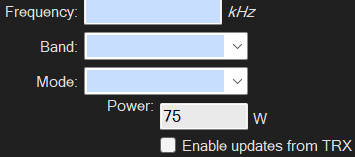
If the logbook is connected to a radio, frequencies can also be updated directly from the radio.
The lower part of the logbook window contains a list view.
This list can display different types of data.
It can show:
- the list of saved QSOs from My Logbook, and
- data from POTA, SOTA, WWFF, and DX clusters.
The POTA cluster is additionally divided into SPOTS and ACTIVATIONS.
The SOTA cluster is divided into SPOTS and ALERTS.
Filtering is enabled by entering a fragment of the region or text you are interested in, for example SP.
The filter is case-sensitive.
Depending on the selected display mode (Logbook or Cluster), the filter searches specific fields and checks whether they contain the entered text fragment — for example:
SP4THK, SPAIN, ISLAND, SP-1234, or anything else containing SP.
Note: In some search fields, the program distinguishes between uppercase and lowercase letters.
SP, sp, Sp, and sP are treated as different queries.
When a filter is active, the filtered list in the main Logbook window is displayed with a red background.
This makes it immediately obvious — especially in moments of panic — where the rest of your QSOs went 😉
They are not gone, they are just filtered out.

Clicking on an entry from any cluster will automatically populate the corresponding fields in the log entry area at the top of the window.
If the Rig (TRX) control module is enabled, the radio frequency will also be set automatically.
Depending on the configuration settings, this action may require either a single click or a double click.
There is no problem — it will still be treated as a single record.
If you operate from multiple parks or had a contact with multiple parks, enter them separated by commas.
During export, the data will be processed accordingly — split, duplicated where necessary, and divided into the appropriate output files.
📝 QSO Editing
After adding a QSO, it often turns out that something needs to be corrected — for example, a missing grid locator.
Simply double-click the selected record, and the edit window will appear:
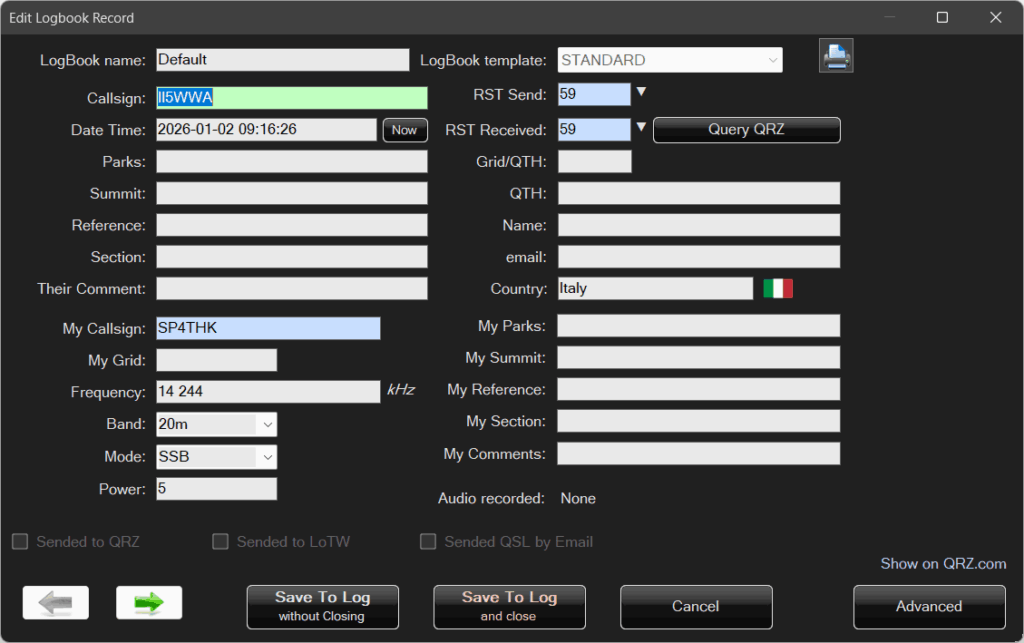
All fields of the record can be edited here.
Use the arrow buttons to move to the next or previous QSO.
Advanced
What if all records in the log need to be changed?
For example, if the park reference was entered incorrectly?
Click Advanced:
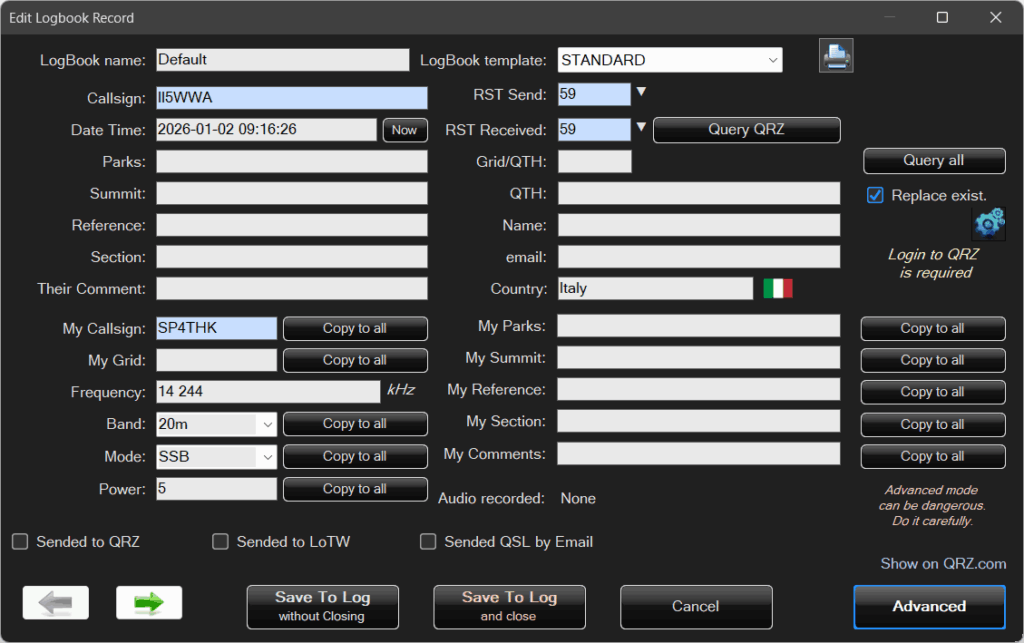
Using the appropriate buttons, the value of the current field can be copied to all records (all remaining QSOs) in the log.
It is also possible to perform a bulk query to QRZ and automatically fill in data for all QSOs with a single click.
This requires that QRZ login credentials have been entered beforehand.
You can click Settings to open the same configuration window that is available from the main logbook window.
Proceed with caution — the program does not verify what data is being overwritten.
Keep in mind that downloading data for all records from QRZ can be very time-consuming.
A backup copy of the logbook is created automatically — just in case.
Filtering
The Logbook provides the ability to filter entries.
This is done using the following buttons:

Previous QSO
The first simple filter is Previous QSO.
If you enter the callsign of the correspondent, the date of the last contact will appear next to the Previous QSO label.
Clicking the Previous QSO button quickly enables a filter that displays all contacts with the selected station.
Set Filter
This is an advanced filtering option that allows filtering by most logbook parameters:
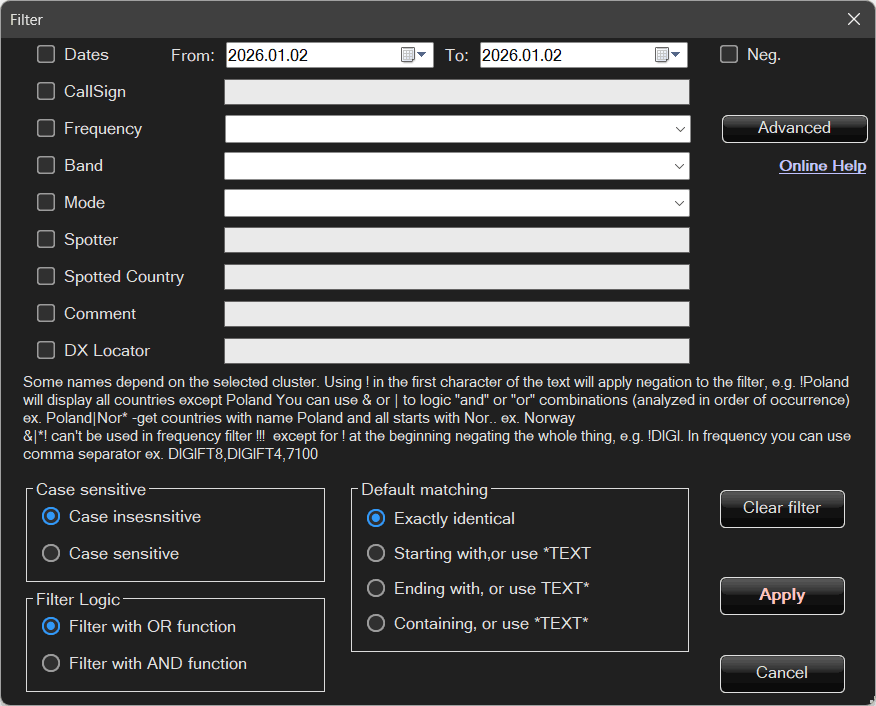
The number of available fields and their descriptions depend on the type of log currently in use — for example, Logbook, POTA Cluster, Telnet, etc.
Different logs contain different data, which results in different filtering parameters.
Warning!
When switching between logs and using filters specific to a given cluster type, filtering may be applied to different fields.
Warning!
If more than one filter parameter is selected (for example band and mode), special attention must be paid to the filter logic being used.
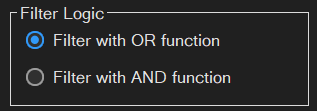
OR filter
The OR filter works as a logical OR.
For example, if you select 40 m band and SSB mode, the filter will display:
- all entries from the 40 m band (SSB, CW, DIGI, etc.), and
- all SSB entries from all bands, for example also from 20 m.
AND filter
The AND filter works as a logical AND.
For example, if you select 40 m band and SSB mode, only entries from the 40 m band in SSB mode will be displayed.
All other entries will be excluded.
Case sensitivity
The filter can be case-sensitive or case-insensitive.
When case sensitivity is enabled, for example:
Poland, POLAND, and POland are treated as different values.
Default matching
Exact match
The field must match the value exactly.
For example, SSB is different from SSB USB.
Starts with
The field must start with the specified value.
For example, Pol will match Pol, Polska, Poland, Pologne.
Ends with
The field must end with the specified value.
For example, land will match Poland, Holland, England, land.
Contains text
The field must contain the specified text.
For example, la will match Poland, Alaska, la.
Control characters
In addition to the default matching modes, you can use control characters in filter fields.
For example, by entering patterns with * in the Country field:
Pol**land*la*
Using ! as the first character applies negation to the filter.
For example, !Poland will display all countries except Poland.
You can also use & or | for logical AND / OR combinations (evaluated in the order they appear).
Examples:
Polska|Nor*– select countries named Polska and all countries starting with Nor (e.g. Norwegia, Norway).!Polska|!Nor*– select countries other than Polska and all countries not starting with Nor.SP4*|SP5*– all callsigns starting with SP4 or SP5.SP4*&!*ABC– all callsigns starting with SP4 and not ending with ABC.
The characters &, |, *, and ! cannot be used in frequency filters,
with the exception of ! at the beginning, which negates the entire value (e.g. !DIGI).
In frequency fields, you can use a comma as a separator, for example:DIGI FT8, DIGI FT4, 7100.
Frequency filtering
Frequency can be filtered in additional ways.
You can enter a single frequency, for example 7100, or a range, such as 7100–7200.
Multiple ranges can be specified using commas, for example:7100–7200, 14000–14100.
Among logical operators, only the ! (NOT) operator is supported here.
For example, !7100–7200 will display all entries outside the specified range.
You can also specify a frequency with an offset, for example:7100+100, which is equivalent to 7100–7200.
To avoid having to manually enter frequency ranges each time, you can create macros.
To do this, click Advanced.
Frequency macros
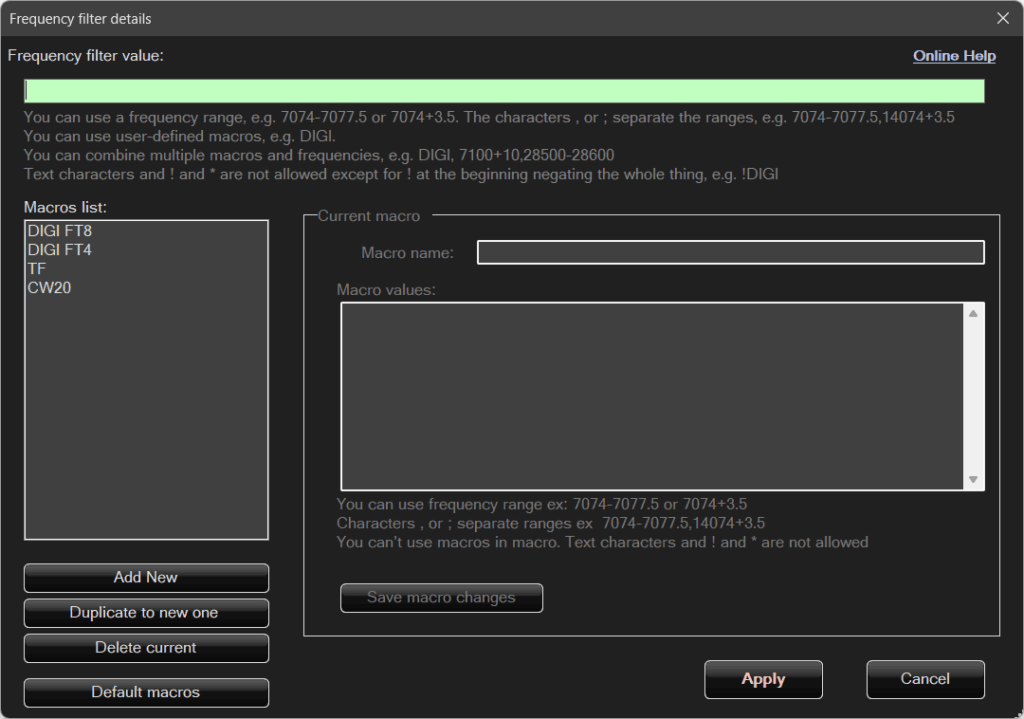
This is where macros are defined.
As shown in the attached image, for example, there is a macro that covers all FT8 frequencies.
At the top, there is a text field containing the current frequency filter from the previous window.
As mentioned earlier, you can use frequency ranges, for example 7074–7077.5 or 7074+3.5.
The characters , or ; are used to separate ranges, for example:7074–7077.5, 14074+3.5.
You can also use user-defined macros, for example DIGI.
Multiple macros and frequencies can be combined, for example:DIGI, 7100+10, 28500–28600.
Text characters as well as ! and * are not allowed in this field.
Below is the list of macros. Each macro can be edited here, as shown in the attached image.
Warning!
Do not confuse the upper frequency filter field with the macro list below.
The upper field represents your query, while the macro list is defined separately.
Editing a macro does not automatically insert it into the filter query.
A macro must be manually entered into the filter field.